Start here
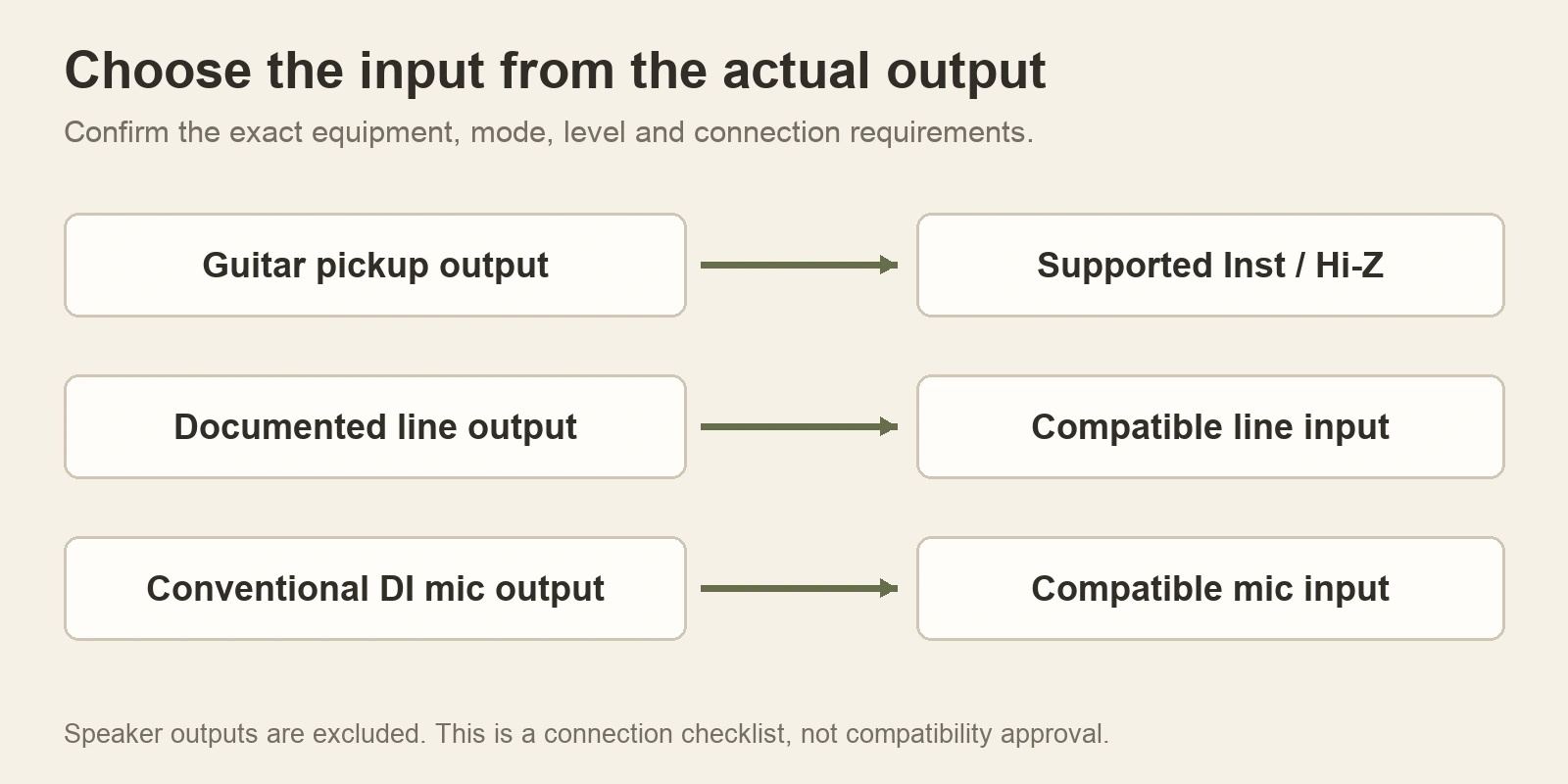
For a direct guitar pickup output, first look for an input that supports instrument signals and enable its documented Inst or Hi-Z mode. A processor’s documented line output calls for a compatible line input. A conventional DI’s mic-level output calls for a mic input. Confirm the actual source: an active guitar or a pedal is not automatically a line-level device.
Identify the output before choosing the socket
| Source | First receiving route to verify | Confirm |
|---|---|---|
| Guitar pickup output | Supported Inst/Hi-Z input | Pickup requirements and input mode |
| Documented processor line output | Compatible line input | Output setting, level and mono/stereo route |
| Conventional DI mic-level output | Compatible mic input | DI power and output instructions |
| Amplifier speaker output | Stop: ordinary interface inputs are unsuitable | A separately approved capture and load system |
Read the source output label and its manual. The same quarter-inch plug can carry different signals. Focusrite distinguishes instrument, line and microphone inputs and notes that not every quarter-inch input offers instrument mode.
A guitar’s onboard electronics do not by themselves establish line level. Likewise, check each pedal or modeller output rather than applying one rule to every box. The DI guide covers the separate conversion route.
Sources: Focusrite: mic, line and instrument inputs; Focusrite: instrument-signal troubleshooting
Separate input impedance from level capacity
Focusrite explains that selecting a mode can change input impedance and maximum input level. Turning a gain knob down is not proof that the input presents the intended load or accepts the source’s maximum signal.
Find the exact input’s supported modes and specifications. Some interfaces switch through software; others use a physical button. A combo connector’s XLR and jack portions can serve different functions. Follow that model’s instructions rather than guessing from the connector shape.
Sources: Focusrite: mic, line and instrument inputs; Focusrite: instrument-signal troubleshooting
Work through a Scarlett 2i2 4th Gen example
For this named interface, connect a direct guitar to a front 6.35 mm input, select that channel and enable Inst: green means instrument mode; white means line mode. Focusrite Control 2 also provides the setting. This example does not describe earlier Scarlett generations.
| Published specification | Instrument input | Line input |
|---|---|---|
| Input impedance | 1 MΩ | 60 kΩ |
| Maximum input level at minimum gain | +12 dBu | +22 dBu |
These are manufacturer specifications, not our measurements. The higher line-input level limit is not a reason to select Line for a direct guitar: loading and headroom are separate requirements. Focusrite notes that a direct guitar without Inst can sound muddy and quiet. Adding gain does not change that input mode.
- For a processor, identify the exact output and verify that it is set to a supported line-level mode before choosing Line. A pedal or active guitar label alone is insufficient.
- After selecting the input, play the strongest passage and reset gain if needed. For the dry-recording check, bypass processing and listen through one monitoring path. If the recorded file is clean but the live sound seems doubled, check direct and software monitoring separately.
Sources: Focusrite: Scarlett 2i2 4th Gen specifications; Focusrite: Scarlett 2i2 4th Gen hardware guide
Set input headroom with the loudest passage
Reduce the listening level before connecting or switching modes as instructed. Use a known working lead, choose the supported input and play your loudest intended passage. Watch the input indicator and recording meter; adjust input gain or a documented pad where appropriate.
If the source already distorts before the interface, a quiet interface output cannot repair it. Focusrite also notes that some amp simulators, multi-effects and preamps can provide line-level outputs. Check their selected output mode and limits before blaming the interface.
Record a clean reference before adding processing
Record a short dry passage with the source and input settings written down. Bypass processing when evaluating playback and avoid hearing a simultaneous live feed. Add the amp sim only after the dry route is understood.
A different playback volume can bias a tonal preference. Keep the original recordings for level behaviour, then compare playback at similar listening volume for tone. Our clipping guide and monitoring comparison address those separate problems.
Sources: Focusrite: mic, line and instrument inputs; Focusrite: instrument-signal troubleshooting
Keep a source-to-input record
| Field | Write down |
|---|---|
| Source | Model, output label and selected output mode |
| Receiver | Interface model, socket and actual input mode |
| Limits | Source level, receiving limit and power requirements |
| Connection | Lead type and mono/stereo assignment |
| Observation | Input indicator, strongest passage and dry playback |
| Uncertainty | Missing specifications and next support question |
Download the blank comparison record (English CSV). Keep unknown output specifications marked unknown until the maker clarifies them. A plug that fits and a meter that moves do not establish the correct connection.
Never connect an amplifier’s speaker output to an ordinary mic, line or instrument input. A pad alone is not approval. Speaker capture needs a complete, explicitly supported capture and load arrangement.
How this guide was prepared
We checked Focusrite’s explanation of input levels, input impedance and maximum input level, plus its instrument-signal troubleshooting note. We arranged those distinctions into a source-to-input table and a proposed dry-recording check. No interface specifications or listening results were measured. The November 25 revision checked the Scarlett 2i2 4th Gen hardware guide and input specifications. Numeric values are manufacturer ratings for that generation; no interface was measured.
Documentation checked .
Added a Scarlett 2i2 4th Gen control and specification example, a monitoring check and contextual incoming links.